How to Join Platypus SMP
Platypus SMP supports both Java Edition and Bedrock Edition players. Before you can play, you need to verify your Discord account and link it to your Minecraft account.
Step 1: Join the Discord
First, join the Platypus SMP Discord server: discord.gg/platypus
Step 2: Verify in Discord
Once you're in the Discord server, run the following command in any channel:
/verify
This gives you the Verified role, which grants you access to the rest of the Discord and confirms you agree to the server rules.
Step 3: Connect to the Minecraft Server
| IP Address | play.platypussmp.net |
| Port | 25584 |
Java Edition
- Open Minecraft: Java Edition
- Click Multiplayer from the main menu
- Click Add Server
- Fill in:
- Server Name: Platypus SMP (or anything you like)
- Server Address:
play.platypussmp.net:25584
- Click Done, then select the server and click Join Server
Bedrock Edition
Bedrock Edition includes Windows 10/11, Xbox, PlayStation, Nintendo Switch, iOS, and Android.
- Open Minecraft (Bedrock Edition)
- From the main menu, go to Play then the Servers tab
- Scroll down and click Add Server
- Fill in:
- Server Name: Platypus SMP (or anything you like)
- Server Address:
play.platypussmp.net - Port:
25584
- Click Save, then select the server to join
Step 4: Link Your Account
When you first connect to the server, you will see a screen like this:
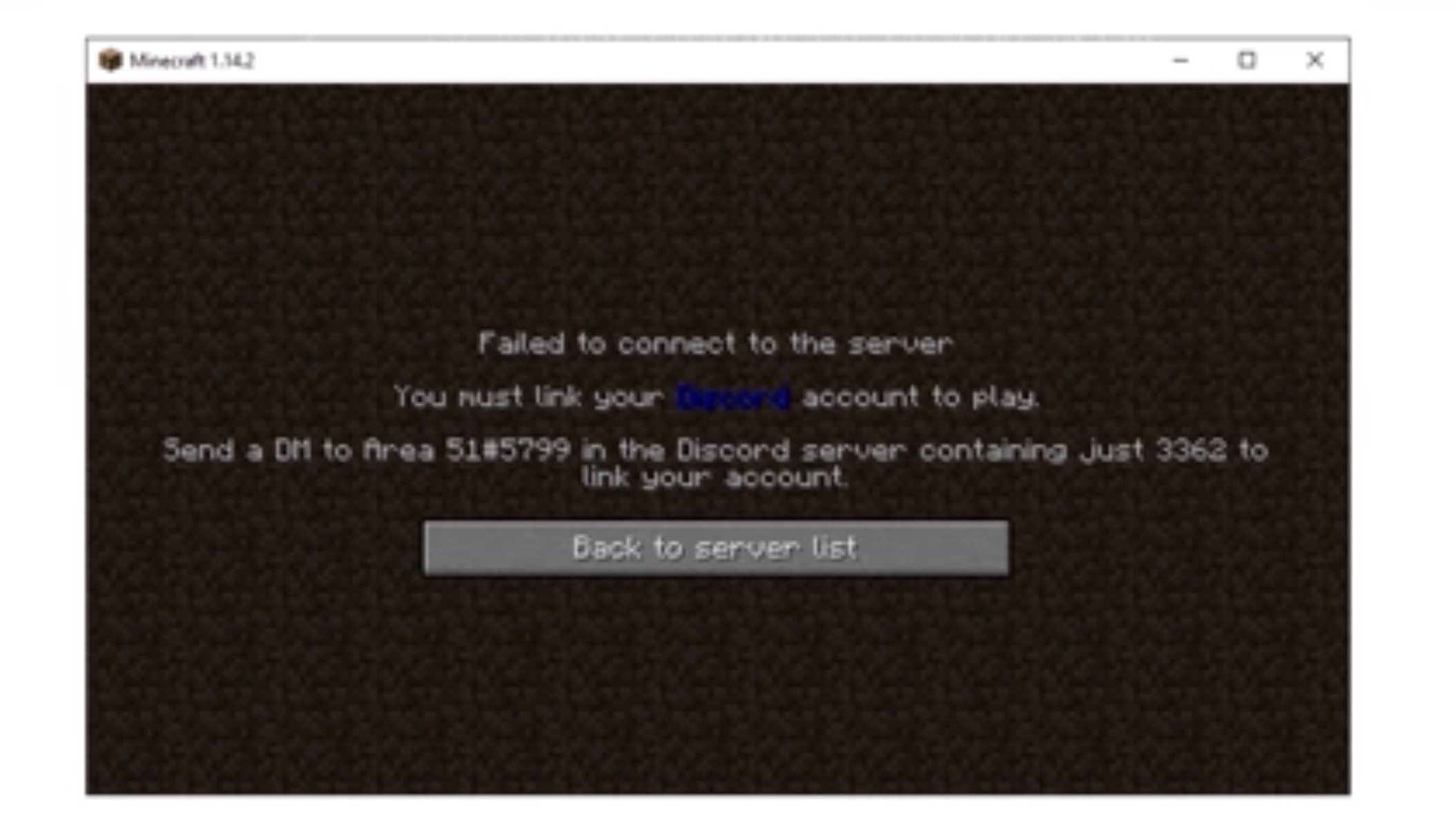
The server will tell you it cannot let you in until your Discord account is linked. It will give you a short code and ask you to send it to @Peri in the Discord server as a DM.
Here is what to do:
- Open Discord
- Find Peri in the server member list and open a DM with her
- Send the code shown on your Minecraft screen (just the number, nothing else)
- Peri will confirm your account is linked
- Go back to Minecraft and join the server again
You only need to do this once. After your account is linked, you can join freely every time.
You're In
Once linked, you are free to play. A few things to get you started:
- Run
/kit starterto grab your beginner gear - Check the Rules so you know what is and is not allowed
- Say hello in chat, the community is friendly and happy to help
Troubleshooting
Can't connect?
- Make sure you entered the correct IP and port
- Check that your Minecraft version is up to date
- Try restarting your game or router
- If the issue persists, ask staff in the Discord for help
Verification code not working?
- Make sure you are DMing Peri directly, not messaging in a server channel
- Send only the number shown on your screen, with no extra text
- If the code expired, try connecting to the server again to get a new one